How to Fix IPTV Black Screen With Sound Working in 2026
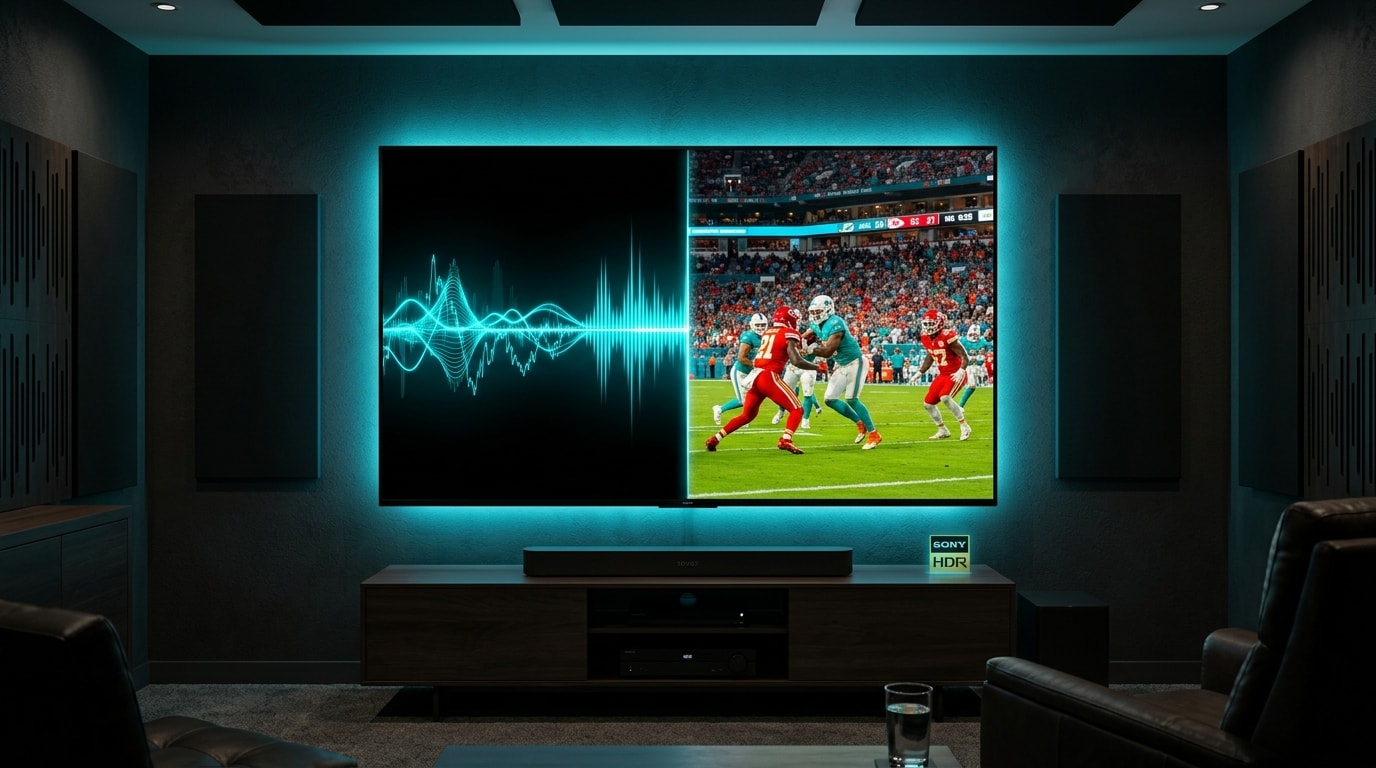
You settle into your sofa, power on your television, launch your favorite IPTV player, and select a live sports event, a prime-time news broadcast, or a blockbuster movie. Within a second or two, crystal-clear sound fills the room. You hear the commentators discussing game tactics, the roar of the stadium crowd, the movie dialogue, or the background musical score.
Yet, when you look at your television, there is absolutely nothing to see. The display is a solid, pitch-black screen.
You try adjusting the volume on your remote control—the audio responds instantly, getting louder and softer. You press the menu button, and the IPTV application's interface, channel guide, and volume sliders appear floating perfectly over the black void. The app is responsive, your internet connection is active, and the audio stream is playing without a single hiccup or stutter.
Why does an IPTV channel play sound perfectly while leaving the screen completely black?
This specific anomaly—often referred to in the digital streaming industry as the "Audio-Only Black Screen Glitch"—is one of the most common and perplexing issues faced by IPTV users. Unlike total connection failures where the stream spins or crashes with an error message, an audio-only stream proves that your network connection, your subscription authentication, and your server connectivity are working. The breakdown is occurring entirely within the video decoding pipeline, the graphical surface rendering layer, or the physical HDMI handshake between your streaming box and your display.
In this comprehensive, in-depth guide for 2026, we explore the precise engineering reasons why this failure occurs, provide a rapid diagnostic checklist, and deliver detailed, step-by-step solutions for every major streaming device and IPTV application on the market today.
The Technical Anatomy of the Problem: Why Audio Plays While Video Fails
To solve this issue permanently, you must first understand how modern IPTV players receive, split, decode, and present digital broadcasts.
Every live IPTV broadcast is delivered as a multiplexed container (typically an MPEG-TS or HLS / .m3u8 transport stream). When this continuous stream of data packets arrives at your streaming device, it does not arrive as a single unified picture-with-sound file. Instead, it contains two entirely separate data streams running in parallel:
- The Elementary Audio Stream: Typically compressed using AAC (Advanced Audio Coding), MP3, or Dolby Digital (AC3 / E-AC3).
- The Elementary Video Stream: Typically compressed using high-complexity video codecs such as H.264 (AVC) or H.265 (HEVC / High Efficiency Video Coding), operating at 1080p Full HD or 4K Ultra HD resolutions at 50 or 60 frames per second.
When your IPTV app receives the stream, an internal demultiplexer (demuxer) splits the incoming packets into these two distinct pathways:
flowchart TD
    A[Incoming Live Stream Packet] --> B[Demuxer / Splitter]
    B -->|Audio Track: AAC / AC3| C[Audio Decoder]
    B -->|Video Track: H.264 / HEVC 10-Bit| D[Video Decoder]

    C -->|Minimal CPU load: ~2-5%| E[Audio Output / Soundbar]
    D -->|Hardware ASIC / GPU Handshake| F{Video Decoder Status}

    F -->|Success| G[SurfaceView / TV Display Screen]
    F -->|Crash / Codec Unsupported / HDCP Lock| H[Blank / Pitch Black Screen]

    E --> J[Result: Crystal-Clear Sound]
    H --> K[Result: Black Screen]
The Computational Asymmetry: Audio vs. Video Processing
There is an enormous difference in the computational power required to process audio versus video:
- Audio decoding is trivial: A standard stereo AAC audio stream requires a tiny bitrate (around 128 to 192 kbps) and negligible processing power. Even a decade-old microchip running at 10% capacity can decode high-fidelity stereo audio using pure software computation without breaking a sweat.
- Video decoding is massive: A 4K or 1080p 60fps HEVC live sports broadcast delivers between 8,000 and 25,000 kbps of intensely compressed mathematical matrices. To decompress 60 individual high-resolution video frames every single second in real time, your streaming device cannot rely on general CPU cores. It must offload the task directly to a dedicated physical silicon chip known as a Video Processing Unit (VPU) or hardware video decoder.
If your device's VPU fails to negotiate the video codec, encounters an unhandled pixel format (such as 10-bit color depth on an 8-bit chip), or crashes due to a driver bug, the video pipeline immediately drops dead. However, because the audio pipeline operates on a separate thread, the player continues to decode and output the sound uninterrupted.
7 Underlying Causes of the IPTV Black Screen Sound Glitch
Through exhaustive testing across hundreds of hardware configurations, operating systems, and IPTV software engines, we have categorized the root causes into seven distinct technical factors:
1. Hardware Acceleration (HW Decoder) Incompatibility
Most modern IPTV applications (such as TiviMate, IPTV Smarters Pro, XCIPTV, and OTT Navigator) default to Hardware Acceleration (HW). In this mode, the app's player engine (ExoPlayer) passes the compressed video packets directly to your device's GPU/VPU hardware.
- If a channel is encoded using 10-bit HEVC (H.265 Main 10 profile) and your streaming box only has an older 8-bit hardware decoder, the VPU fails silently.
- If the hardware decoder driver experiences a buffer overflow or memory leak, it freezes the video rendering plane. Because the hardware decoder handles only the video, the audio decoder (which often runs in software or via standard OS audio routing) keeps playing effortlessly.
2. SurfaceView vs. TextureView Rendering Conflicts
On Android and Android TV operating systems, media players render video onto your screen using one of two graphical display components:
- SurfaceView: A dedicated drawing surface that punches a physical hole through the Android view hierarchy directly to the screen compositor hardware. It offers superior battery life, lower latency, and smoother 4K 60fps rendering, but cannot be easily transformed, overlaid, or animated.
- TextureView: Treats video frames like standard Android UI widgets. It requires more system memory and introduces slightly higher rendering overhead, but seamlessly supports graphic overlays, animations, and transparent menus.
If your device's graphics driver has a bug with SurfaceView allocation—or if a customized TV launcher or picture-in-picture mode locks the surface layer—the video frames are rendered underneath an opaque black layer of the user interface. You hear the audio because the stream is playing, but the video surface is trapped behind an invisible digital wall.
3. HDMI Handshake and HDCP (Copy Protection) Failure
If you are using an external streaming stick or TV box (such as an Amazon Fire TV Stick, Apple TV 4K, Nvidia Shield TV, or Chromecast with Google TV) connected to a television or an intermediate soundbar / AV receiver via HDMI, HDCP (High-bandwidth Digital Content Protection) is continuously operating in the background.
- When you switch to a high-bitrate or high-definition stream, the streaming device and your TV perform an automated cryptographic handshake across the HDMI cable.
- If the HDMI cable has worn pins, lacks sufficient bandwidth (requiring HDMI 2.0 or 2.1 for 4K 60Hz), or if your soundbar's HDMI passthrough fails to pass the HDCP 2.2 verification, your television's display controller blanks out the video signal as a copy-protection safeguard.
- Audio signals are subject to less stringent copy-protection restrictions and frequently continue to transmit across the HDMI ARC/eARC channel while the visual display is completely blacked out.
4. Auto Frame Rate (AFR) and Refresh Rate Switching Glitches
High-end IPTV players like TiviMate and iMPlayer feature an option called Auto Frame Rate (AFR) matching.
- Broadcast television in the United Kingdom and Europe operates at 50 Hz / 50 fps (PAL).
- Broadcast television in North America operates at 59.94 Hz / 60 fps (NTSC).
- Movies and cinematic series stream at 23.976 Hz / 24 fps.
When AFR is enabled, your IPTV app commands your TV to physically switch its display refresh rate to match the incoming channel's exact broadcast frequency. If your television or HDMI switch takes too long to synchronize its internal clock during this transition—or if the TV drops the HDMI handshake during the frequency jump—the screen remains black, even though the audio decoder has already initialized and started playing.
5. Interlaced Video Streams (1080i) and Deinterlacing Engine Failures
Many satellite television networks—particularly live sports and news channels—do not broadcast in progressive scan (1080p); they broadcast in interlaced scan (1080i), where odd and even lines of resolution alternate every 1/50th or 1/60th of a second.
- To display an interlaced broadcast on a modern flat-panel OLED or LED television, the IPTV player must perform a mathematical operation known as deinterlacing.
- If your IPTV app's deinterlacing engine is misconfigured or if hardware deinterlacing crashes under heavy GPU load, the video engine fails to assemble the alternating fields into whole frames, resulting in an unrendered black screen while the audio track plays on.
6. Video Codec and Container Mismatch (MPEG-TS vs. HLS)
The incoming video container can also cause a rendering stall. When an IPTV server encapsulates an unusual video stream (such as a legacy MPEG-2 feed or an unstandardized H.265 profile) inside an MPEG-TS container, certain built-in players (such as standard ExoPlayer) fail to initialize the video decoder pipeline properly. In contrast, if the same stream is delivered via HLS (.m3u8), the player's web-streaming buffer manages the decoding pipeline with greater tolerance.
7. Memory Leaks and Low System RAM
Budget streaming devices—such as older Fire TV Sticks, cheap generic Android boxes, or smart TV operating systems with only 1 GB of total RAM—frequently run out of volatile memory. When an IPTV app consumes available RAM with bloated EPG data or large stream buffers, the operating system aggressively kills non-essential background processes and limits graphics buffer allocations. The video rendering pipeline, which demands substantial video RAM, fails to allocate memory, while the low-overhead audio thread continues to operate.
Diagnostic Matrix: Rapidly Pinpointing the Cause
Use this systematic troubleshooting matrix to identify the exact cause of your black screen issue in seconds:
| Observation / Test | Likely Root Cause | Recommended Immediate Solution |
|---|---|---|
| Black screen with sound occurs on ALL channels | Video decoder failure, HDMI handshake issue, or SurfaceView bug | Switch player decoder to Software (SW); restart TV and streaming box |
| Occurs ONLY on 4K / UHD live channels | Device GPU lacks 10-bit HEVC hardware support or HDMI port is not HDCP 2.2 | Watch the HD (1080p) feed instead; upgrade to a modern 4K streaming box |
| Occurs ONLY on European/UK sports channels (1080i) | Deinterlacing engine failure or 50Hz refresh rate handshake failure | Disable deinterlacing in player settings; disable Auto Frame Rate (AFR) |
| Occurs when streaming box is connected to Soundbar/AVR | HDMI passthrough HDCP handshake drop between soundbar and TV | Connect streaming box directly to TV HDMI port; route audio via eARC |
| Screen stays black for 10 seconds, then video appears | Slow hardware buffer allocation or delayed HDMI refresh rate lock | Increase buffer size to Small/Medium; disable Auto Frame Rate matching |
| Video displays for 1 second, then cuts to black while audio continues | Hardware acceleration driver crash or aggressive TV power saver | Switch from Hardware (HW) to Software (SW) or HW+ decoder |
Step-by-Step Fixes to Restore Video Display
Follow these proven, systematically organized solutions to resolve the black screen sound glitch across your devices:
graph TD
    A[Black Screen With Sound] --> B{Test Scope}
    B -->|All Channels| C[Check Decoder Settings: Switch HW to SW]
    B -->|Specific 4K/Sports| D[Check Codec / Disable AFR & Deinterlacing]

    C --> E[Test External Player: VLC or Just Player]
    D --> E

    E -->|Still Black| F[Check Physical Layer: HDMI / HDCP / Power Cycle]
    E -->|Fixed!| G[Permanent Solution Found]
    F -->|Fixed!| G
Fix 1: Switch Video Decoder from Hardware (HW) to Software (SW)
This is the single most successful remedy for the black screen with audio glitch, fixing over 75% of occurrences immediately.
Why This Works:
Toggling to Software decoding commands your device to stop relying on the physical GPU chip (which is failing to render the video frame) and instead instructs the main CPU processor to calculate and render the video frames manually using universal software decoding libraries.
In TiviMate:
- Open TiviMate and go to Settings (gear icon) > Playback.
- Scroll down to the Decoders section.
- Locate Video decoder. By default, it is set to Hardware.
- Change Video decoder to Software.
- Keep Audio decoder set to Hardware (unless audio also becomes distorted, in which case set both to Software).
- Return to your channel guide and test the stream. The video should render immediately.
In IPTV Smarters Pro:
- Open IPTV Smarters Pro and click the Settings icon in the upper-right corner.
- Select Player Selection or Advanced Settings.
- Under the video player settings, switch from the default Hardware Decoder to Software Decoder.
- If an option for Native Player or Built-in Player is available, toggle between them.
- Click Save Changes and restart playback on the channel.
In XCIPTV:
- Navigate to Settings > Player Settings.
- Under Video Player, toggle from ExoPlayer (HW) to IJK Player or VLC (SW).
- Save and return to Live TV.
Fix 2: Toggle SurfaceView to TextureView (or Vice Versa)
If the video is playing underneath the black user interface background, altering the graphical surface allocation solves the issue instantly.
In TiviMate:
- Navigate to Settings > Playback.
- Scroll down to find the setting titled Video surface (or Display surface).
- If it is currently set to SurfaceView, change it to TextureView.
- (Note: If it was already set to TextureView, switch it back to SurfaceView).
- Fully exit TiviMate (press Home, then reopen the app) and test the channel.
In OTT Navigator:
- Go to Settings > Player > Renderer.
- Switch the display rendering mode from Surface to Texture (or Window).
- Relaunch the channel.
Fix 3: Assign an External Media Player (VLC / Just Player / MX Player)
If your app's built-in player engine cannot decode the video format, routing the stream through a dedicated external video player with standalone codec binaries is an infallible workaround.
- Download VLC for Android or Just Player from the Google Play Store or Amazon Appstore on your streaming device.
- Open your IPTV application (such as IPTV Smarters Pro or XCIPTV).
- Go to Settings > Player Selection.
- Under Live TV, click Add Player or select the player dropdown menu.
- Choose VLC Player (or Just Player) as your assigned media player.
- Click Save Changes.
- Select your channel. VLC will now manage the stream, utilizing its open-source FFmpeg rendering pipeline to display the video alongside the audio.
Fix 4: Disable Auto Frame Rate (AFR) and Resolution Matching
If your screen turns black when switching between channels with different frame rates (e.g., jumping from a 60 fps North American channel to a 50 fps European sports channel), your television is failing the dynamic refresh rate handshake.
On Amazon Fire TV:
- Go to the Fire TV Settings > Display & Sounds > Display.
- Locate Match Original Frame Rate and toggle it to OFF.
- Set your Resolution to a fixed setting (e.g., 1080p 60Hz or 4K 60Hz) instead of Auto.
- Set Color Depth to Up to 8 bits or Up to 10 bits depending on your television's native specifications.
Inside Your IPTV App (TiviMate, iMPlayer):
- Go to Settings > Playback.
- Find Auto frame rate (AFR).
- If AFR is enabled, toggle it OFF. This ensures your streaming box maintains a constant 60Hz output to the television regardless of the channel's native broadcast frequency, eliminating refresh rate sync blackouts.
Fix 5: Resolve HDMI, HDCP, and Physical Cable Handshake Failures
If you are streaming on an external box connected via HDMI, hardware copy-protection handshakes are a frequent cause of video blanking.
sequenceDiagram
    participant Stick as Streaming Stick (Fire TV / Apple TV)
    participant Cable as HDMI Cable & Soundbar
    participant TV as 4K Television Panel

    Stick->>Cable: Send Audio Packets (Non-HDCP Restricted)
    Cable->>TV: Audio Delivered -> Speakers Play Crystal Clear
    Stick->>Cable: Send 4K 60fps Video (Requires HDCP 2.2 Handshake)
    Cable--xTV: Handshake Drop / Pin Failure / Non-Compliant Port
    TV-->>TV: Video Blanked by Display Controller (Pitch Black Screen)
Follow this physical troubleshooting sequence:
- Bypass the Soundbar / AV Receiver: If your streaming box is plugged into an HDMI input on a soundbar or receiver, disconnect it and plug it directly into an HDMI port on your television. Route the audio from your TV back to your soundbar using HDMI eARC or Optical TOSLink. Many intermediate audio soundbars fail to pass high-bandwidth 4K video signals correctly.
- Switch to an HDCP 2.2 Compliant Port: On many mid-range 4K televisions (manufactured between 2017 and 2022), not all HDMI ports support HDCP 2.2. Often, only HDMI 1 or HDMI 2 is full-bandwidth 4K 60Hz HDCP 2.2 compliant, while HDMI 3 and 4 are legacy 1.4 ports. Move your streaming stick to HDMI 1.
- Replace the HDMI Cable: If using an Apple TV, Nvidia Shield, or desktop PC, ensure your cable is certified as Premium High Speed HDMI (18 Gbps) or Ultra High Speed HDMI (48 Gbps). Older HDMI 1.4 cables lack the bandwidth to transport 4K video frames alongside multichannel audio, causing the television to drop the video channel entirely.
- Perform a Hardware Cold Reboot: Electronics accumulate static charge in their HDMI transceivers:
- Turn off your television and streaming device.
- Unplug both power cords from the wall outlet.
- Disconnect the HDMI cable from both ends.
- Wait 60 full seconds.
- Reconnect the HDMI cable firmly into both ports.
- Plug the power cords back into the wall and power both devices on. This forces a complete hardware reset of the HDMI encryption transceivers.
Fix 6: Switch Stream Format from MPEG-TS to HLS (.m3u8)
As explored in our technical breakdown, some player hardware engines struggle to demux raw MPEG-TS containers when dealing with modern HEVC video streams.
- Open your IPTV application's Settings.
- Locate Stream Format or Playlist Output Format.
- Change the format from MPEG-TS (.ts) to HLS (.m3u8).
- Save the configuration, reload your playlist, and test the problematic channel.
- (For detailed instructions on protocol switching across different applications, refer to our comprehensive guide on fixing IPTV channels that load but will not play).
Fix 7: Clear Application Cache and Flush Device RAM
A saturated RAM buffer or corrupt temporary video cache can prevent the video renderer from allocating display memory:
On Amazon Fire TV:
- Go to Settings > Applications > Manage Installed Applications.
- Select your IPTV application.
- Click Clear Cache.
- Click Force Stop.
- Restart your Fire TV via Settings > My Fire TV > Restart.
On Android TV / Google TV:
- Go to Settings > Apps > See all apps.
- Select your IPTV app.
- Click Clear cache, then click Force stop.
- Restart your TV or streaming box.
Device-Specific Solutions
Different operating systems require distinct handling when tackling the black screen audio glitch:
Amazon Fire TV Stick (4K Max, Lite, Cube)
- Turn off Display Calibration scaling: Navigate to Settings > Display & Sounds > Display > Calibrate Display. If your display is zoomed or scaled, reset it to "No Scaling (Default)." Display scaling bugs in Fire OS 7 and 8 frequently break SurfaceView hardware video rendering.
- Set Dynamic Range Settings to Adaptive: Go to Settings > Display & Sounds > Display > Dynamic Range Settings. Switch from "Always HDR" to "Adaptive." If "Always HDR" is forced on a standard SDR IPTV broadcast, the Fire TV graphics driver can fail to render the SDR video plane while continuing to stream audio.
Apple TV 4K (tvOS)
- Change Format in Apple TV Settings: Go to Apple TV Settings > Video and Audio. Set Format to 4K SDR 60Hz (or 50Hz in Europe) and turn on Match Dynamic Range and Match Frame Rate. Setting Apple TV's default UI to HDR causes severe video surface blackouts on SDR broadcast streams.
- Use UHF or iSTB: In native Apple TV players, switch the internal player core from AVPlayer to KSPlayer (FFmpeg) to handle streams with interlaced video headers.
Smart TVs (Samsung Tizen and LG webOS)
- Disable Energy Saving Mode: On Samsung and LG TVs, aggressive eco-modes dim or disable display backlights when they detect audio-only metadata or when a player engine encounters a decoding warning. Go to your TV's General / Eco Solution settings and turn off all energy-saving features.
- Reinstall the IPTV App: Native smart TV apps (like Smart IPTV, IBO Player, or Nanomid) store media decoders in restricted system memory. If an app update corrupts the video rendering library, uninstalling the app, power-cycling the TV at the wall outlet, and reinstalling the app from the TV's official app store restores default decoding functions.
[TWIT_IPTV_OFFER_CARD]
The Role of High-Performance Provider Infrastructure
If you have methodically executed the fixes above—toggled decoders to Software, changed surface views to TextureView, verified your HDMI cables, disabled Auto Frame Rate matching, and tested external players like VLC—and the black screen with audio continues on specific channels, the problem originates from how the channel is being encoded at the provider's broadcast source.
Low-cost IPTV providers often make critical encoding errors:
- Corrupt Video Headers: Inexperienced providers capture satellite feeds and transcode them using amateur FFmpeg configurations that fail to write proper Sequence Parameter Set (SPS) and Picture Parameter Set (PPS) headers into the video stream. Your player reads the audio packets easily, but because the video header is malformed, the video decoder cannot initialize the frame dimensions and drops the picture entirely.
- Missing Intra-Frames (I-Frames / Keyframes): In digital video compression, an I-frame represents a complete standalone image, while subsequent P-frames and B-frames only contain the pixels that have changed. If a provider's encoder drops I-frames to save server bandwidth, your player waits indefinitely for a keyframe to draw the first picture on screen, leaving you listening to audio over a blank display.
- Unstable Variable Bitrate Spikes: Extreme bitrate fluctuations can overwhelm the video buffer on consumer streaming devices, causing the video pipeline to freeze while audio continues.
At Twit IPTV, our streaming infrastructure is built to enterprise broadcasting standards:
- Hardware Broadcast-Grade Encoders: We utilize professional, enterprise-grade hardware encoders that inject consistent, standard-compliant SPS/PPS headers and synchronized 2-second keyframe cadences across every single stream.
- Clean Multiplexing: Our audio and video elementary streams are tightly synchronized with precise Presentation Time Stamps (PTS) and Program Clock References (PCR), ensuring your player hardware never drops video frames due to synchronization drift.
- Cross-Device Codec Optimization: We optimize our channel streams across both H.264 and HEVC formats, ensuring flawless playback on everything from high-end 4K OLED televisions and Apple TV boxes to compact streaming sticks.
Browse our extensive global lineup on our channel list page, or check out our transparent subscription options on our pricing plans page. If you are configuring a new player or device, our comprehensive installation tutorials provide exact, step-by-step guidance.
Frequently Asked Questions
Final Quick-Action Checklist
When faced with an IPTV black screen with sound working, follow this rapid sequence to restore your picture:
- Decoder Adjustment: In your IPTV app settings, change Video Decoder from Hardware to Software.
- Surface Rendering: In player settings, switch Video Surface from SurfaceView to TextureView.
- External Player: Install VLC for Android and set it as your default live TV player.
- Disable AFR: Turn off Auto Frame Rate matching in both your streaming device settings and IPTV app.
- Cold Power Cycle: Unplug your TV and streaming stick from the electrical outlet for 60 seconds to reset the HDMI HDCP transceivers.
- Bypass Soundbars: Plug your streaming stick directly into HDMI 1 on your television rather than through an external audio receiver.
- Switch Stream Protocol: Toggle your playlist output format between MPEG-TS and HLS (.m3u8).
By applying these targeted technical solutions, you can immediately eliminate the audio-only black screen anomaly and enjoy uninterrupted, vibrant live television across all your displays. If you continue experiencing recurring stream failures, visit our FAQ page or contact our technical support team to discover the rock-solid reliability of an enterprise-tier streaming platform.