How to Fix IPTV EPG Wrong Time and Time Zone Guide Issues in 2026
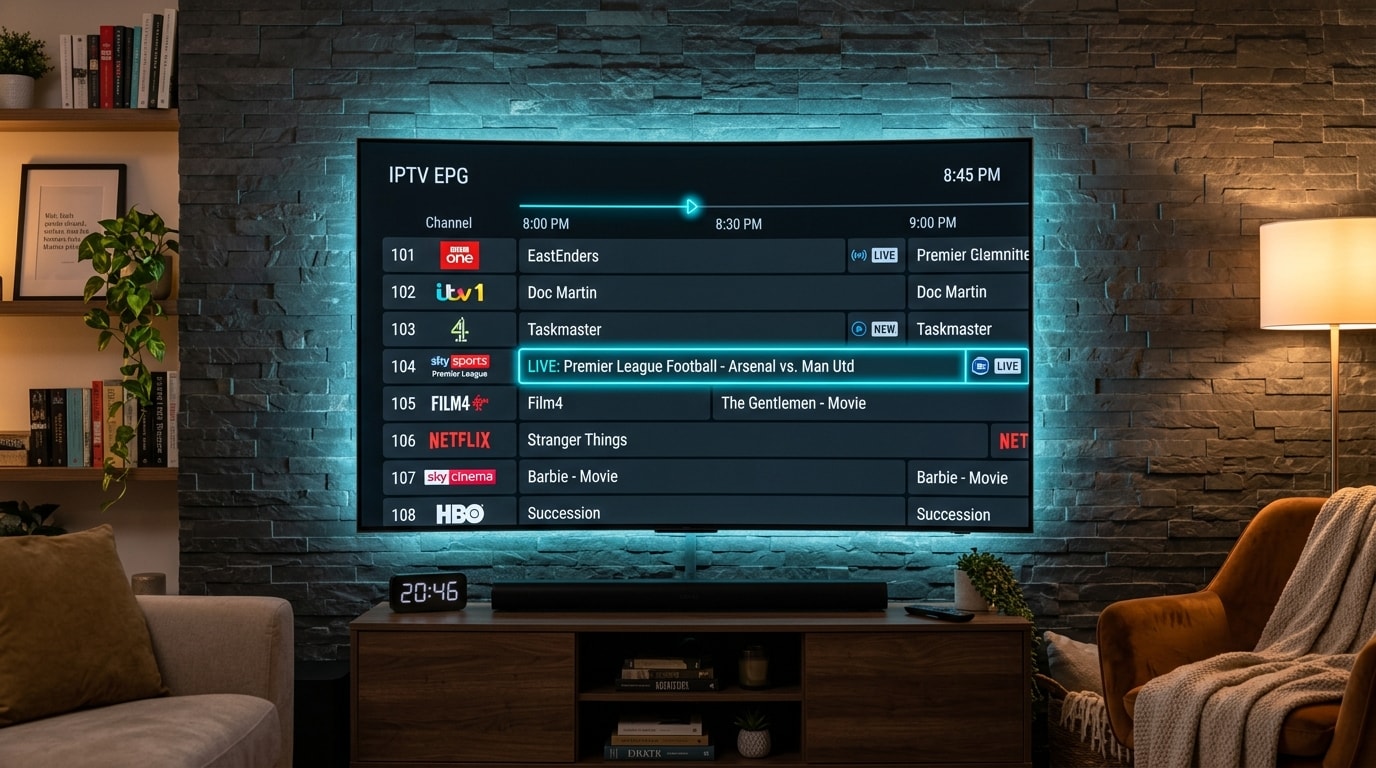
An Electronic Program Guide (EPG) is the navigational backbone of modern television streaming. When you open your IPTV player, the EPG displays current broadcasts, upcoming programming schedules, episode descriptions, and channel metadata arranged across an intuitive timeline grid. When synchronized correctly, the EPG allows you to seamlessly browse thousands of international channels, schedule catch-up viewings, set recording timers, and see exactly what is playing in real time.
However, one of the most persistent and frustrating glitches experienced by streaming viewers occurs when the IPTV EPG shows the wrong time. Programs appear shifted by one hour, two hours, five hours, or even half a day ahead or behind the real-time live broadcast. A primetime football match scheduled for 8:00 PM might appear in your guide at 3:00 PM or 11:00 PM. News bulletins are misaligned with their actual airtimes, and the progress indicator bar tracks a show that finished hours ago or has not even started.
When confronted with an IPTV guide time shift, many subscribers assume that their playlist is broken, that their provider is experiencing a catastrophic outage, or that their streaming player is defective. In reality, an EPG time mismatch is rarely a sign of service failure. Instead, it is an algorithmic timing calculation discrepancy occurring between one or more interconnected digital layers: the broadcaster's capture system, the provider's XMLTV metadata server, Universal Coordinated Time (UTC) reference stamps, local device system clocks, Network Time Protocol (NTP) daemons, and your IPTV player application's internal timezone parser.
This comprehensive guide breaks down the technical mechanics of IPTV program guide clocks in 2026. We explore the architectural causes behind guide time discrepancies, provide step-by-step calibration tutorials for every major streaming device and IPTV application, explain how to handle international channel bouquets across conflicting regional time zones, and outline proven preventive practices to maintain permanent timeline accuracy across your entertainment setup.
How Electronic Program Guides Work Under the Hood
To resolve program guide timing discrepancies permanently, it is essential to understand how EPG data is generated, structured, formatted, and rendered by client devices.
Unlike legacy analog television signals—where schedule information was sent as simple vertical blanking interval text or teletext data—modern IPTV services rely on standardized XML structured data feeds, most commonly adhering to the XMLTV format.
The Architecture of an XMLTV Guide Feed
When your IPTV player updates its TV guide, it makes an HTTP or HTTPS request to an EPG URL provided by your subscription. The server returns an XML data document structured into two fundamental object blocks:
- Channel Elements (`<channel>`): Define the unique identifier, display name, language, and channel icon logo URL.
- Program Elements (`<programme>`): Define individual broadcast blocks with start times, end times, titles, episode numbers, ratings, actor credits, and plot descriptions.
A standard program entry within an XMLTV file contains timestamps structured like this:
```xml <programme start="20261014190000 +0000" stop="20261014210000 +0000" channel="SkySportsMainEvent.uk">
<title lang="en">Live Premier League: Arsenal vs Chelsea</title> <desc lang="en">Comprehensive live coverage from Emirates Stadium.</desc> <category lang="en">Sports</category> </programme> \`\`\`Notice the string `20261014190000 +0000`. This follows the standard ISO-derived format:
- Year: 2026
- Month: 10 (October)
- Day: 14
- Hour: 19 (7:00 PM)
- Minutes & Seconds: 0000
- Timezone Offset: `+0000` (Coordinated Universal Time / UTC)
The Client-Side Translation Equation
When your IPTV player application—such as TiviMate, IPTV Smarters Pro, XCIPTV, or IBO Player—downloads this raw XML document, it must perform a real-time mathematical translation before rendering the timeline on your television screen:
$$\text{Displayed Program Time} = \text{XMLTV Broadcast Timestamp} + \text{Device Time Zone Offset} + \text{Manual EPG Player Shift}$$
If any single variable in this equation is incorrect, the entire guide shifts out of place. For example, if a broadcast begins at 19:00 UTC and you reside in New York (Eastern Standard Time, UTC-5), your device must subtract five hours to display the program accurately at 2:00 PM. If your device mistakenly assumes the source time is already local Eastern Time, it will display the show at 7:00 PM—creating an immediate 5-hour time shift.
Understanding this calculation makes troubleshooting straightforward: you are not trying to repair a damaged video file; you are aligning mathematical clocks across hardware and software boundaries.
The 6 Primary Root Causes of IPTV EPG Time Shifts
Before touching any settings, it helps to isolate exactly which factor in your streaming environment is producing the timing discrepancy. An EPG timing error almost always originates from one of six primary root causes.
1. Streaming Device Operating System Clock and Time Zone Mismatch
The most common cause of an inaccurate EPG is an incorrectly configured system clock on the physical hardware running your IPTV application. Modern streaming sticks (such as Amazon Fire TV Sticks, Chromecast with Google TV, and Android TV boxes) sync their internal system clocks via Network Time Protocol (NTP) over the internet.
If your streaming device is configured with the correct local time (e.g., 8:00 PM) but is assigned to the wrong geographical time zone (e.g., GMT instead of EST), the operating system's internal UTC conversion calculation will be corrupted. Your player relies on the operating system's time zone definition to calculate offsets. When the OS clock and timezone disagree, the IPTV player inevitably displays the wrong broadcast windows.
2. IPTV Player Application Internal Timezone and EPG Offset Overrides
Most dedicated IPTV applications feature their own internal time-shift engines designed to compensate for server-side timing errors. Players like TiviMate, IPTV Smarters Pro, and XCIPTV allow users to manually define EPG time offsets from -12 hours to +12 hours in 30-minute increments.
If an offset was previously configured to fix a temporary provider glitch, or if a user accidentally enabled a manual timezone shift within the player's settings, this setting will override the operating system clock, throwing all program times out of sync.
3. Daylight Saving Time (DST) Transitions
Bi-annual Daylight Saving Time clock adjustments represent a frequent point of failure for streaming schedules. When countries advance their clocks by one hour in spring ("spring forward") or move them back by one hour in autumn ("fall back"), several desynchronization points emerge:
- Your local streaming device may have updated its clock automatically, but the broadcaster's regional uplinking facility has not yet updated its schedule metadata.
- The country hosting the broadcast (e.g., the United Kingdom) changes DST on a different calendar weekend than the country where you reside (e.g., the United States), creating a temporary 1-hour discrepancy that lasts for several weeks.
- The IPTV provider's EPG caching server stored an older XMLTV file generated prior to the DST transition and continues serving obsolete timestamps until the cache expires.
Whenever you notice a consistent, universal one-hour time difference across your entire guide immediately following a seasonal change, Daylight Saving Time is almost certainly the culprit.
4. Provider XMLTV Source Delivered in UTC Without Tagged Offsets
A high-quality IPTV provider maintains optimized EPG servers that accurately append timezone identifiers to every program block (such as +0000 for UTC or +0100 for British Summer Time). However, some legacy or secondary EPG sources deliver raw broadcast times without explicit timezone tags (e.g., 20261014190000).
When an IPTV player encounters timestamps lacking an explicit timezone offset tag, different players behave unpredictably:
- Some players assume the untagged timestamp is formatted in UTC.
- Other players assume the timestamp is formatted in the local time of the client device.
- Certain players assume the time corresponds to the provider's server headquarters.
If your player interprets an untagged UTC timestamp as local time, a massive multi-hour shift occurs corresponding exactly to your geographical distance from the Greenwich Meridian.
5. Multi-Country Channel Bouquets in a Single Playlist
International IPTV subscriptions typically include channel feeds from dozens of countries: the United States, Canada, the United Kingdom, France, Germany, Spain, Italy, the Middle East, Latin America, and Australia.
If an EPG generator creates guide data based on the local time of each respective country without standardizing all entries to UTC, domestic channels might display accurate local times while foreign channels display airtimes shifted by 5 to 10 hours. For example, BBC One might be formatted in London time (GMT/BST), while NBC is formatted in New York time (EST/EDT), and beIN Sports is formatted in Gulf Standard Time (GST).
Resolving multi-bouquet discrepancies requires assigning individualized EPG source offsets per channel group rather than altering your device's universal system clock.
6. Stale or Corrupted Local EPG Cache Files
To ensure rapid navigation and avoid downloading massive multi-megabyte XML files every time you open the app, IPTV players store guide data in a local cache on your device's flash storage.
If your streaming device ran low on memory, experienced an unexpected power loss during a scheduled guide update, or lost internet connectivity mid-download, the cached EPG database can become corrupted. Outdated program entries remain locked into historical time slots, refusing to update even when the provider's remote servers are transmitting fresh, accurate data.
Diagnostic Methodology: How to Isolate Your EPG Timing Problem
Before adjusting system settings or manual offset sliders, follow this structured diagnostic procedure to pinpoint the origin of the discrepancy.
| Diagnostic Step | What You Observe | Likely Source | Recommended Corrective Action |
|---|---|---|---|
| Test 1: Check Discrepancy Magnitude | Exactly 1 hour off (+1 hr or -1 hr) | Daylight Saving Time transition | Adjust manual EPG offset by $\pm 1$ hour in player settings. |
| Test 2: Check Regional Spread | Discrepancy matches your timezone difference from UTC (e.g., 5 hrs in EST, 8 hrs in PST) | Missing UTC offset tag in provider XMLTV feed | Configure player's universal EPG time shift to match your local UTC offset. |
| Test 3: Compare Channel Bouquets | US channels are correct, but UK channels are 5 hours ahead | Multi-country timezone clash | Apply bouquet-specific EPG time shift in advanced players (like TiviMate). |
| Test 4: Check Clock vs Timeline | Device clock is wrong across all apps (YouTube, Netflix) | Operating system NTP sync failure | Recalibrate device date, time, and timezone in OS system settings. |
| Test 5: Check Cache Persistence | Times remain wrong after manual offset changes | Corrupted local database cache | Force stop the app, purge cache, and execute a fresh EPG update. |
| Test 6: Check Individual Channel | Only one channel in a category is misaligned | Upstream broadcaster encoder error | Use channel-specific offset override in player options. |
Step-by-Step Device Time Calibration Guides
Because IPTV players rely heavily on the underlying operating system's internal clock for timezone calculations, your physical streaming hardware must be accurately calibrated first.
Amazon Fire TV Stick & Fire TV Cube (Fire OS)
Amazon Fire OS devices periodically lose synchronization with Amazon's time servers if network firewalls block UDP port 123 (NTP) or if location services are disabled.
- Turn on your television and navigate to the Fire TV Settings gear icon on the far right of the home screen.
- Select Preferences.
- Scroll down and click on Time Zone.
- Select Time Zone again. Confirm that your current geographical region (e.g., Eastern Time, Central Time, Mountain Time, Pacific Time, or GMT) is selected.
- If the time displayed on the Fire TV interface does not match the actual time on your wall clock, navigate to Settings > My Fire TV > About > Network and check your internet connection status.
- Toggle your Wi-Fi network off and back on under Settings > Network to trigger an automatic NTP server refresh.
- Restart the Fire TV device by holding down the Select button and the Play/Pause button simultaneously for 5 seconds until the device reboots.
Android TV & Google TV (Chromecast, Nvidia Shield, Sony, TCL, Philips, Hisense)
Android TV and Google TV devices offer both automated network-provided time and manual overrides.
- Open Settings (the gear icon at the top right of the Google TV / Android TV home screen).
- Navigate to System and select Date & Time.
- Verify that Automatic date & time is toggled to Use network-provided time.
- Click on Set time zone and verify that your exact geographical location is selected. Do not choose an offset with the same hours from an unrelated country, as daylight saving rules differ between territories.
- If the clock remains incorrect, toggle Automatic date & time to Off, manually set the exact date and minute, and then toggle Automatic date & time back to On to force an NTP handshake with Google's global time servers.
- Check your location settings under Settings > Privacy > Location to ensure your device recognizes its proper geographic territory.
Samsung Smart TV (Tizen OS)
Samsung Smart TVs running Tizen OS occasionally encounter timezone desynchronization when connected to custom DNS servers or after major firmware updates.
- Press the Home button on your Samsung remote and navigate to Settings > All Settings.
- Select General & Privacy (or System on older firmware versions).
- Select System Manager and choose Time.
- Open Clock.
- Set Clock Mode to Auto.
- If the displayed time is incorrect, switch Clock Mode to Manual, specify your exact local time, and verify that the Time Zone sub-menu reflects your local region.
- If your TV has an active broadcast antenna connected, ensure that the clock is not pulling legacy RF broadcast time from a distant transmitter.
LG Smart TV (webOS)
LG televisions running webOS use a combination of broadcast signals and IP geolocation to determine system time.
- Press the Settings (gear) button on your LG Magic Remote.
- Navigate to All Settings > General > System > Time & Timer.
- Select Clock.
- Ensure Auto is checked. If the time is wrong, uncheck Auto and set the time, date, and timezone manually.
- Check Time Zone Menu and confirm that your specific metropolitan area or state is selected.
- Set Custom Time Zone if your country observes regional daylight saving variations that differ from the national standard.
Apple TV (tvOS)
Apple TV devices synchronize with Apple's global time clusters, but travel or VPN usage can cause timezone confusion.
- Open the Settings app on tvOS.
- Select General.
- Scroll down to Date and Time.
- Confirm that Set Automatically is turned On.
- Check the Time Zone listed underneath. If it displays an incorrect region, toggle Set Automatically to Off, manually search for your closest major city, and select it.
- If using a VPN application on tvOS 17 or newer, ensure the VPN location does not force an unintended local timezone shift.
Windows PC & Mac Desktop Environments
If you stream IPTV on a desktop or laptop computer using VLC, IPTV Smarters Desktop, or browser players:
- Windows 10/11: Open Settings > Time & Language > Date & Time. Ensure both Set time automatically and Set time zone automatically are toggled On. Click the Sync now button under Additional settings to synchronize with
time.windows.com. - macOS: Open System Settings > General > Date & Time. Verify that Set time and date automatically is checked and set to Apple's time server (
time.apple.com). Verify that your time zone is set to your current closest city.
Step-by-Step IPTV Player Configuration Tutorials
Once your physical streaming device is broadcasting the correct system clock, you can configure your IPTV player application's internal EPG engine.
1. TiviMate IPTV Player (The Industry Standard)
TiviMate is widely recognized as the premier IPTV player for Android TV and Fire OS. It provides the most granular EPG adjustment settings available on any platform.
Method A: Global EPG Time Offset (Affects All Channels in a Source)
- Open TiviMate and press the Left directional button on your remote to open the main side menu.
- Navigate to Settings (gear icon at the bottom of the navigation drawer).
- Select EPG > EPG Sources.
- Click on your active EPG source link.
- Scroll down to Time offset, h:min.
- Adjust the slider. For example:
- If your guide shows shows 2 hours ahead of live TV: set offset to -2:00.
- If your guide shows shows 3 hours behind live TV: set offset to +3:00.
- If programs are 30 minutes off (as in certain regional time zones like Newfoundland or parts of India/Australia): set offset to +0:30 or -0:30.
- Return to Settings > EPG and click Update EPG to rebuild the entire database.
Method B: Channel-Specific EPG Offset (For Single Misaligned Channels)
- While on the TV guide grid, highlight the specific channel that has an incorrect time (such as Sky Sports Premier League or NBC Sports).
- Press and hold the Select / OK button on your remote to open the channel options sidebar on the right side of the screen.
- Select Channel options > EPG time offset.
- Adjust the offset slider exclusively for that individual channel.
- Click Apply. This changes the timing for that specific feed without disturbing any other channels in your playlist.
Method C: Group-Level EPG Offset (For Multi-Country Playlists)
- In the channel list or TV guide, navigate to the group name (e.g., "UK Entertainment" or "French News").
- Long-press the Select / OK button to open group options.
- Select Group options > EPG time offset.
- Enter the required time adjustment for that entire national bouquet.
2. IPTV Smarters Pro (Android, Firestick, iOS, Smart TVs, Windows, Mac)
IPTV Smarters Pro is one of the most widely used cross-platform IPTV applications. It features a dedicated time-shift configuration menu.
- Launch IPTV Smarters Pro and log into your dashboard.
- Click on the Settings icon (gear symbol) in the top right corner.
- Select Time Format. Choose between 12 Hours (AM/PM) or 24 Hours based on your personal preference.
- Return to the Settings menu and select EPG Time Shift (or Timezone on older builds).
- Use the plus (
+) and minus (-) buttons to adjust the hour offset:- If the EPG is 1 hour ahead: set offset to -1.
- If the EPG is 2 hours behind: set offset to +2.
- Click Save Changes.
- Return to the main dashboard, click on Install EPG or Refresh EPG, and wait for the download progress bar to reach 100%.
3. XCIPTV Player
XCIPTV provides a clean, modern interface with integrated EPG timezone adjustment.
- Open XCIPTV and click on the Settings gear icon on the main home screen.
- Navigate to Account or Player Settings.
- Select EPG Settings or Time Shift.
- Locate the EPG Time Offset slider.
- Move the slider to compensate for the difference between the broadcast and your clock.
- Click Save / Update.
- Force-refresh the guide by selecting Update EPG from the settings menu.
4. IBO Player (Samsung Tizen, LG webOS, Android)
IBO Player operates through a web-based device management portal as well as in-app settings.
- In-App Method: Open IBO Player, go to Settings > General Settings, and locate EPG Time Offset. Adjust the hours up or down to match your broadcast schedule.
- Web Portal Method: If using IBO Player on Samsung or LG Smart TV, visit the official IBO Player portal on your computer or phone browser, log in using your TV's MAC address and Device Key, navigate to Manage Playlists, and specify the EPG Time Zone associated with your playlist URL.
5. Perfect Player IPTV
Perfect Player is a lightweight, classic IPTV player popular on legacy Android boxes:
- Open Perfect Player and press the Menu button or click the Gear icon.
- Navigate to Settings > General.
- Click on EPG.
- Locate the EPG Time Shift, hours input field.
- Enter positive or negative numbers (e.g.,
-5.0or+1.0). - Return to the main screen, open the menu, and click Refresh EPG.
6. Kodi (PVR IPTV Simple Client)
If you run Kodi for your media center:
- Open Kodi and navigate to Add-ons > My add-ons > PVR clients > PVR IPTV Simple Client.
- Click Configure.
- Select the EPG tab on the left menu.
- Locate EPG time shift (hours).
- Adjust the slider to match your required hour difference.
- Toggle Apply time shift to all channels on.
- Click OK, restart Kodi, and allow the PVR database to re-import guide metadata.
How to Clear EPG Cache and Force a Clean Redownload
If you have adjusted device clocks and player offsets but the guide continues to display frozen or corrupt time slots, your player's cached database must be purged.
Clearing Cache in Android TV and Firestick
- From the device home screen, navigate to Settings > Applications > Manage Installed Applications.
- Scroll down and select your IPTV player (e.g., TiviMate or IPTV Smarters).
- Click Force Stop to terminate all active background processes.
- Click Clear Cache.
Critical Warning: Do NOT click "Clear Data" unless you have your IPTV login credentials written down. Clearing Data will erase your username, password, and customized favorite channel lists. "Clear Cache" is completely safe.
- Relaunch the application.
- Navigate into the player's EPG settings and select Update EPG or Reload EPG.
In-App Database Purging in TiviMate
TiviMate includes a built-in database management utility:
- Open TiviMate Settings > EPG.
- Scroll down to Clear EPG. Confirm the prompt.
- Once the database displays 0 programs, click Update EPG.
- Allow TiviMate 60 to 90 seconds to download fresh XML metadata directly from your provider's server.
Purging Cache in IPTV Smarters Pro
- Log into IPTV Smarters Pro.
- Click on Settings in the top right.
- Scroll to Clear Cache or Maintenance.
- Click Clear EPG Cache.
- Return to the home screen and click Install EPG.
Handling Multi-Country Playlists and Conflicting Regional Time Zones
One of the greatest benefits of a global service like Twit IPTV is having access to more than 25,000+ live international channels spanning every major television market on Earth. However, managing channels from the United States, Europe, Australia, and the Middle East simultaneously presents unique scheduling challenges.
Regional Timezone Reference Chart
When configuring international channel bouquets, use this reference table to calculate the required hour shifts relative to UTC:
| Television Region | Standard Timezone | UTC Offset (Standard) | UTC Offset (Daylight Saving) | Typical Shift for US Eastern Viewers |
|---|---|---|---|---|
| US Eastern (New York, Miami) | EST / EDT | UTC-5 | UTC-4 | 0 hours (Baseline) |
| US Pacific (Los Angeles, Seattle) | PST / PDT | UTC-8 | UTC-7 | -3 hours |
| United Kingdom (London, Manchester) | GMT / BST | UTC+0 | UTC+1 | +5 hours (+4 in Summer) |
| Central Europe (Paris, Berlin, Rome) | CET / CEST | UTC+1 | UTC+2 | +6 hours (+5 in Summer) |
| Eastern Europe (Athens, Bucharest) | EET / EEST | UTC+2 | UTC+3 | +7 hours (+6 in Summer) |
| Middle East / Gulf (Dubai, Riyadh) | GST / AST | UTC+3 to UTC+4 | No DST | +8 to +9 hours |
| Australia Eastern (Sydney, Melbourne) | AEST / AEDT | UTC+10 | UTC+11 | +15 to +16 hours |
Strategy 1: Assigning Secondary EPG Sources by Country
Advanced IPTV players allow you to attach multiple XMLTV links to a single playlist:
- Use your provider's primary EPG link for domestic channels.
- Add secondary country-specific EPG links for foreign channels.
- Assign dedicated offsets to each individual source in TiviMate under Settings > EPG > EPG Sources.
Strategy 2: Using Group-Specific EPG Offsets
In players that support bouquet management, you can leave universal settings at 0 and apply offsets directly to specific channel folders:
- Right-click or hold OK on a channel folder (e.g., "UK Entertainment").
- Select Group Options.
- Set EPG Time Offset to match the time difference between your local timezone and the broadcast country.
- All channels inside that group will now adjust automatically while leaving your domestic channels untouched.
EPG Synchronization Troubleshooting Matrix
Use this quick-reference diagnostic matrix to resolve any guide synchronization issue rapidly:
| Symptom | Probable Cause | Verification Test | Immediate Fix |
|---|---|---|---|
| All channels exactly 1 hour off | Daylight Saving Time transition | Check if seasonal clock change occurred recently | Set player EPG time offset to $+1.0$ or $-1.0$ hr |
| All channels off by 4 to 8 hours | Local device clock operating in wrong time zone | Compare Firestick/TV system time to actual clock | Set device OS Date & Time to automatic network time |
| Foreign channels off, domestic correct | Multi-region bouquet time clash | Check channel country origin | Apply group-level EPG offset in TiviMate or player |
| Guide shows "No Information" on all channels | Expired XMLTV cache or broken EPG URL | Check player EPG update status in settings | Purge EPG cache and perform manual EPG update |
| Guide times correct, but timeline bar is wrong | Device internal clock minute/second skew | Verify device clock down to the exact second | Re-sync device time via network NTP protocol |
| Channels load but video won't play when clicked from guide | Stream format or decoder incompatibility | Check if channel plays from raw category list | Review guide on IPTV channels load but won't play |
| Guide shows correct show, but screen is black with audio | Video hardware rendering failure | Check if audio commentary plays in background | Follow troubleshooting in IPTV black screen audio works |
| Guide freezes during update | Low flash memory on device | Check available storage in OS settings | Free up at least 1 GB of storage space |
| Guide times revert after reboot | Device battery or RTC clock failure | Check device time immediately upon restart | Replace CMOS/battery or re-enable NTP auto-sync |
Advanced XMLTV URL Inspection: Verifying Provider Feeds
For technically inclined streamers who want to verify whether an EPG timing issue is originating on the provider's server before adjusting local hardware, direct URL inspection is an invaluable technique.
How to Inspect an EPG URL
An IPTV EPG URL typically looks like one of the following formats:
http://provider-domain.com:8080/xmltv.php?username=USER&password=PASShttp://provider-domain.com:8080/epg.xml.gz
You can test this feed using a standard web browser or terminal command on your computer:
- Open a browser window and paste your XMLTV URL into the address bar.
- If the file downloads as a
.gzcompressed archive, extract it using 7-Zip, WinRAR, or Archive Utility. - Open the resulting
.xmltext file in a code editor like VS Code, Notepad++, or Sublime Text. - Search for a familiar channel name (e.g.,
BBC OneorESPN). - Inspect the start and stop attributes of the current program block:
- If the timestamp ends in
+0000, the feed is strictly formatted in UTC. Your player must apply your local timezone offset. - If the timestamp ends in your local offset (e.g.,
-0500), the provider has pre-calculated the offset for your region. In this case, your player offset must remain set to0.0. - If the timestamp has no
+or-suffix, the provider's XML generator is omitting timezone headers, requiring you to manually define the full hour difference in your player.
- If the timestamp ends in
Understanding your feed's raw timestamp structure eliminates guesswork, allowing you to enter the mathematically exact offset required for flawless schedule tracking.
5 Common Mistakes to Avoid When Fixing IPTV Guide Times
When attempting to calibrate a misaligned EPG, streamers frequently make several predictable errors that exacerbate the problem:
- Adjusting the Device Clock Instead of the Timezone: Changing the hour number on your TV while leaving the timezone set to the wrong region will break SSL security certificates, causing player authentication errors and stream connection drops.
- Applying Double Offsets: Setting a manual offset on your Firestick OS and applying an offset inside TiviMate doubles the correction, swinging a 2-hour delay into a 4-hour advance.
- Clicking "Clear Data" Instead of "Clear Cache": In Android and Fire OS, clicking "Clear Data" completely formats the application, deleting all playlists, credentials, and custom favorites. Always select "Clear Cache".
- Expecting Instant Updates Without Cache Purging: Modifying EPG offset sliders in player settings often requires invalidating the current memory cache before the new math applies to existing timeline blocks.
- Ignoring Router Time and DNS Filters: Certain customized ad-blocking DNS profiles or router firewall rules inadvertently block NTP time requests on UDP port 123, preventing streaming devices from synchronizing their clocks with global reference servers.
Preventive Maintenance: How to Keep Your IPTV Guide Permanently Synchronized
EPG synchronization should not be a daily chore. By configuring a few automated maintenance routines, you can ensure that your TV guide remains accurate 365 days a year.
1. Set Automated Daily EPG Refresh Intervals
Never rely on manual EPG updates. High-quality IPTV players allow you to automate guide downloads:
- In TiviMate: Navigate to Settings > EPG > Update on app start and toggle it On. Set Update interval to Every 24 hours.
- In IPTV Smarters Pro: Enable Auto EPG Update in General Settings. This ensures your player fetches fresh schedule updates every morning before you sit down to watch.
2. Lock Your Streaming Device to Network-Provided NTP Time
Never set your streaming hardware's time manually unless diagnosing a temporary router failure. Always keep Automatic Date & Time enabled so that device clocks micro-calibrate against atomic time servers over the internet.
3. Maintain Buffer Memory on Flash Storage
EPG files require uncompressed local storage space to parse XML databases. If your Firestick or Android TV storage drops below 500 MB of free space, the player will fail to decompress newly downloaded guide data, leaving you with stale, out-of-sync schedules. Regularly uninstall unused applications and clear temporary system caches.
4. Pair Your Player With a Premium High-Performance IPTV Service
An EPG can only be as accurate as the server delivering it. Budget and free IPTV services often scrape unverified public XML feeds with missing timezone headers, broken metadata, and frequent server timeouts.
Subscribing to a reliable provider like Twit IPTV guarantees access to dedicated, high-speed EPG servers updated in real time with synchronized electronic guide metadata for over 25,000+ live channels and 130,000+ VODs.
[TWIT_IPTV_OFFER_CARD]
Frequently Asked Questions
Conclusion
An inaccurate Electronic Program Guide can transform an otherwise premium home entertainment setup into a frustrating guessing game. However, because EPG scheduling is governed by straightforward mathematical time offsets rather than unpredictable hardware failures, restoring pinpoint guide accuracy is always achievable.
By verifying that your physical streaming device is locked to automatic network-provided NTP time, utilizing your IPTV player's internal time-shift sliders to compensate for seasonal Daylight Saving Time transitions, and periodically purging corrupt cache databases, you can ensure that your TV schedule remains perfectly synchronized with live broadcasts around the clock.
For an uninterrupted, crystal-clear streaming experience backed by dedicated high-performance EPG servers, explore our Twit IPTV subscription plans, view our complete international channel lineups, or follow our step-by-step device installation guides. If you need assistance with custom player configurations, our customer support team is available 24/7 to help.